FAQs
Categories
Sub-Categories
- (Q1.)What is required to be done if user is getting following errors :
- Unable to submit Online Correction.
- Page is stuck while doing Online Correction.
- System has encounter some Technical error, Insert smart card, Password incorrect etc. while registering DSC on TRACES.
- Websigner Socket installation related error
- Please uninstall old version of Web-Socket emsigner if available in the system after that install JAVA 8, 32Bit (even if system is of 64 bit) on your system then install latest Web-Socket emsigner V 2.0 from TRACES website (www.tdscpc.gov.in).
- The guidelines to install Web Socket emsigner set up V 2.0 are as follows:
Users need to install the latest WebSigner V 2.0 downloaded from TRACES in machine
1. JRE 8 or above with 32-bit version only should be present in system. If more than one JRE installed, please uninstall those. Keep only one JRE.
2. User must have ADMIN access on their machine.
3. User should have Internet connectivity while installing the WebSigner V 2.0.
4. There should not be any proxy present on browser while using WebSigner for DSC related activities.
5. After installation of Web Socket emsigner user need to run the same while using Digital Signature based functionalities on TRACES. - Procedure to install Web Socket emsigner set up from TRACES website:
Step 1: Login to TRACES website by entering the User ID, Password, TAN of the Deductor and the "Captcha Code". Landing page will be displayed.
Step 2: Click on "Requested Downloads" under "Downloads" Menu.
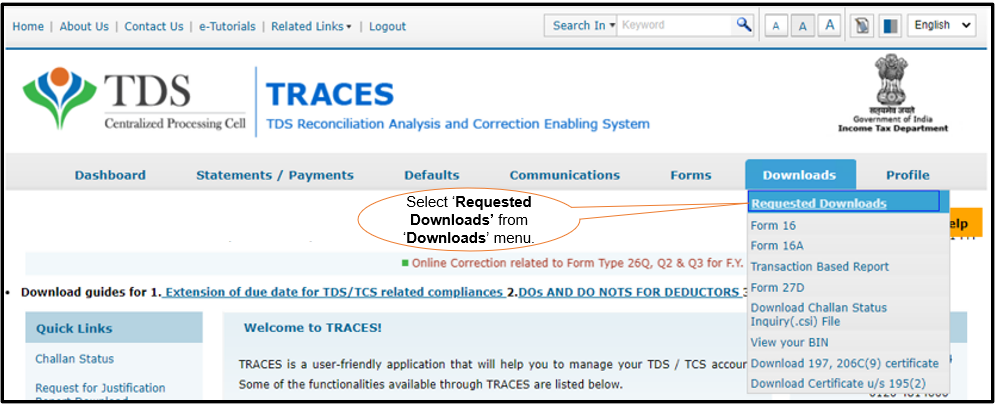
Step 3: Message will display on the screen as follows:
Attention Deductors:
To use Digital Signing functionality through emsigner in Chrome and Firefox browser, you will need TRACES Web Socket emsigner Utility V2.0. Click on Click Here hyperlink to download the Web Socket emsigner setup.
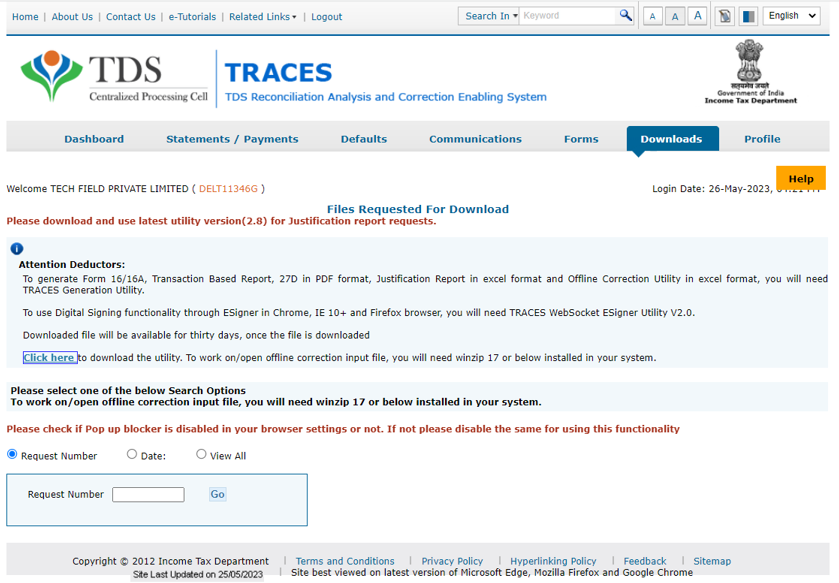
Step 4: Submit Captcha Code to view link for downloading Web Socket emsigner Latest version. Click on Hyper link TRACES WebSigner Setup V 2.0.
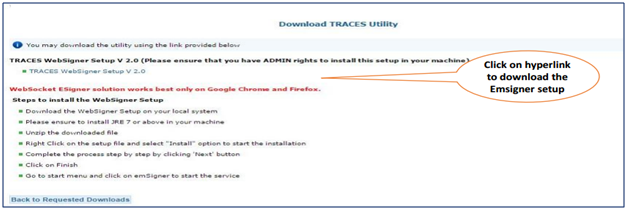
Step 5: Unzip the setup file downloaded from TRACES website. Double click on the setup file and click on "start" to start the installation. Please ensure that you have ADMIN rights and JRE 8 to install this setup in your machine.
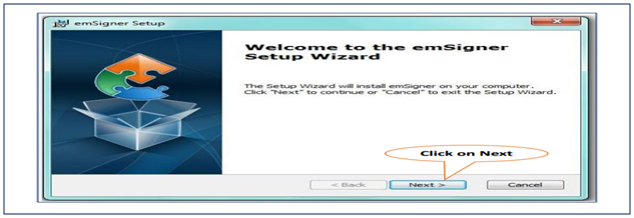
Complete the process step by step by clicking 'next' button then click on "Finish". Go to start menu and click on emsigner to start the service.
For further details refer E-Tutorials published on TRACES website at below mentioned link: https://contents.tdscpc.gov.in/en/chromeWebSocket-etutorial.html - Brief steps to install Java:
Step1: Go to www.java.com.

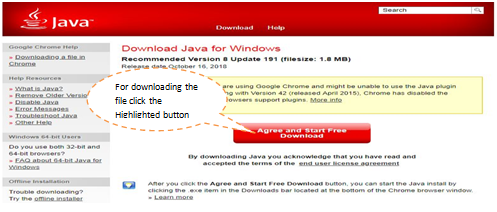
Step2: Click on "Free Java Download" button.
Step3: Click on "Agree and Start Free Download". If you want to know how to install Java, please click on "Installation Instructions" link available on same page.
Note: Oracle and Java are registered trademarks of Oracle and/or its affiliates. Other names may be trademarks of their respective owners. - Procedure to remove proxy from browser:
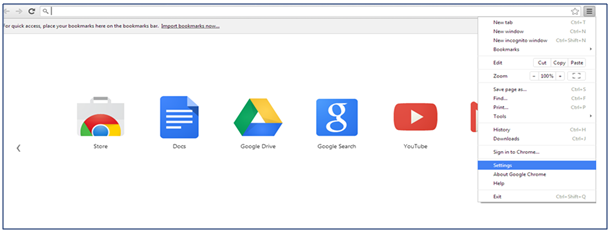
Step1: Go to browser settings.
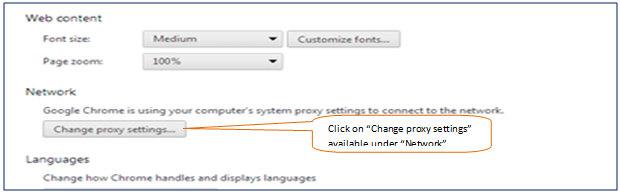
Step2: Click on "Change proxy settings" option available under "Network" in advanced settings
Step3: Click on "LAN setting" option available under "Connection" option.
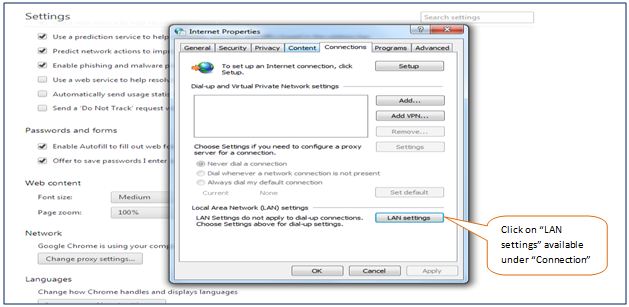
Step4: Local Area Network (LAN) settings window will pop-up, uncheck the box available under "Proxy server" to unable proxy from browser and click on OK.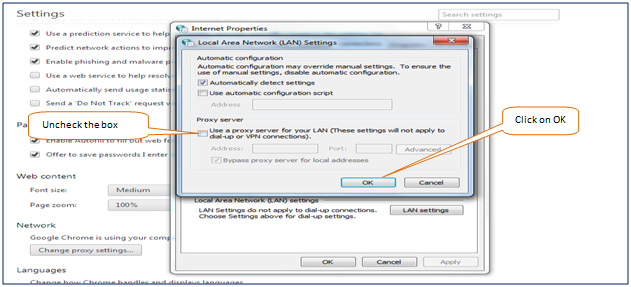
- Follow the below mentioned instructions to enable/check/run Emsigner:
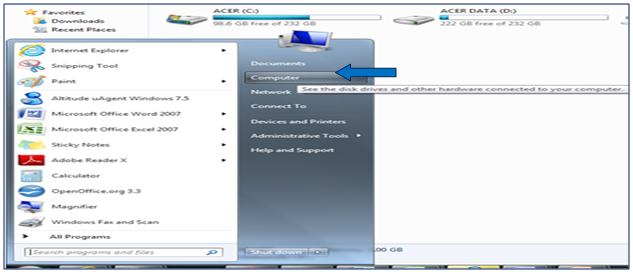
Step1: Go to start button and click on "My Computer" option.
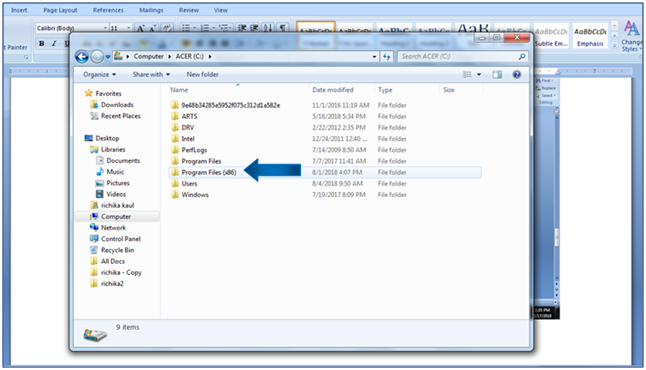
Step2: Go to C: drive and click on location in Program Files i.e. Program files 86r where e Mudhra Limited folder will be available i.e. emSigner is installed.
Step3: Inside the folder, go to emSigner folder then dox folder. There a file will be available as websocket_java.Open the file in chrome or Mozilla.
Step4: A success pop-up will come confirming that WebSocket has been installed correctly and working.
Note: If user getting message "Server connection error" after opening file then Go-to the start menu and start the emSigner (Double click to start). Message will come 'Your Emsigner is running successfully'. - If your problem still persists, kindly uninstall the existing Web-socket and install latest Web-socket V2.0 on your system. Restart the system after clearing browsing history and then re-try for the same.
Note: Emsigner is compatible with Microsoft Edge, Mozilla 40+ & Google Chrome 50+ Java Version 8 (32 bit (even if system is of 64 bit). DSC should be plugged in before using emsigner. If you are facing issue in particular browser then retry the same in other browsers to avoid delay. There should be only one version of Java installed on the system (there should not be multiple JAVA installed in the system). - Brief steps to check JAVA versions in system:
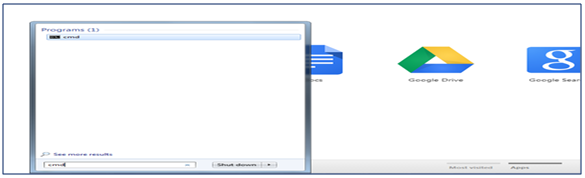
Step1: Go to start menu in system and type "cmd" in search option then press "Enter" key.
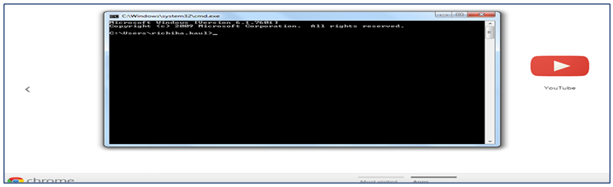
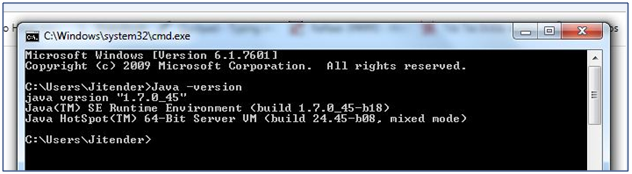
Step2: Black screen window will pop-up. Type Java -version and then press "Enter".
JAVA, JRE versions and JAVA bit will display as follows:
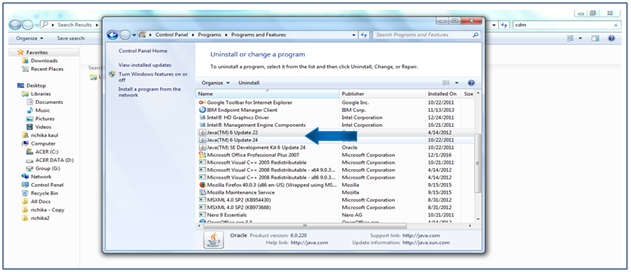
- Steps to check multiple JAVA versions:
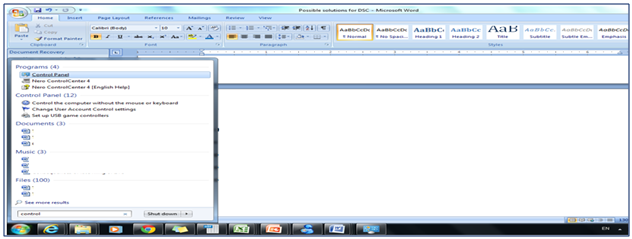
Step1: Go to start menu and type "Control Panel" in search option.
Step2: Click on "Program and Features" option.
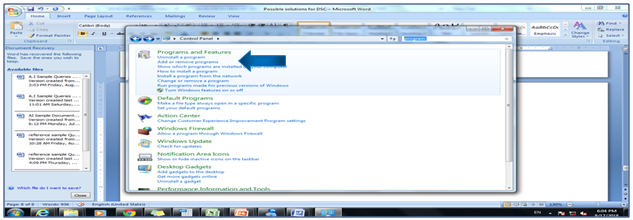
Step3: Multiple JAVA versions will display on next screen.